
How to Limit Who Can Reply on Twitter (X) in 2026
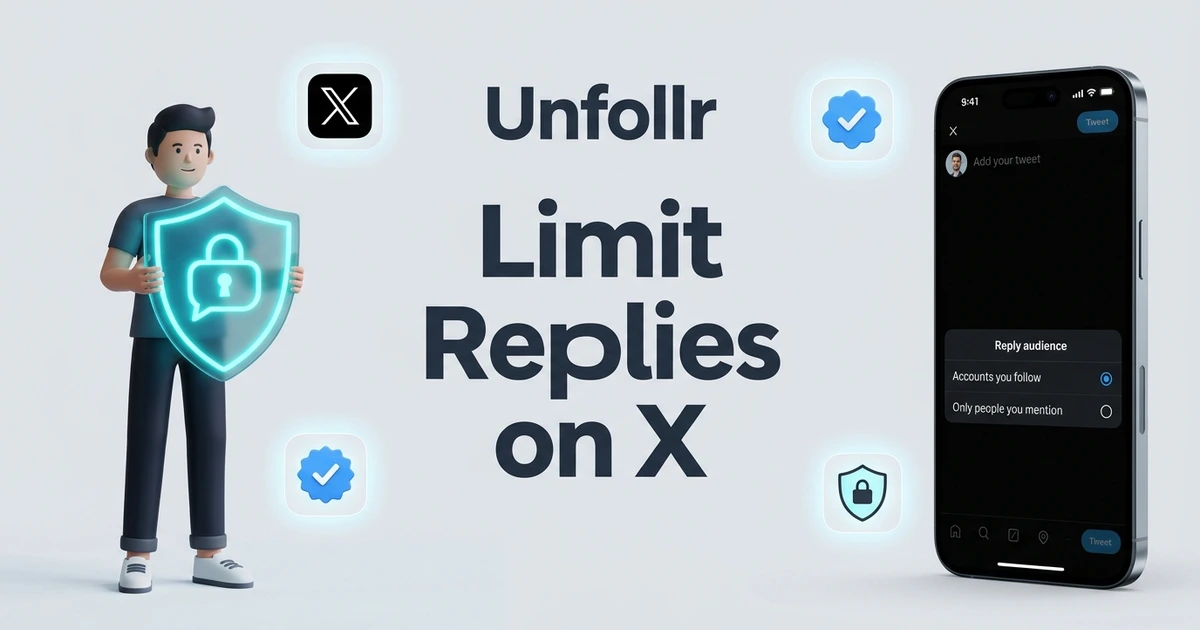
How to Limit Who Can Reply on Twitter (X) in 2026
Tired of pile-ons, spam, and reply guys derailing your posts? You can control exactly who responds. To limit who can reply on Twitter, tap the "Everyone can reply" option (next to the globe icon) in the compose box before posting, then pick a narrower audience — and in 2026 you can change this even after a post goes live.
Reply controls don't hide your post or limit who can see it. Anyone can still view, like, repost, and quote your tweet. What changes is who's allowed to reply underneath it. This guide covers every option, how to set it before and after posting, and when each setting makes sense.
The Reply Control Options on X
When you tap the audience selector, X gives you several choices for who can reply:
| Option | Who can reply |
|---|---|
| Everyone | Any account on X (the default) |
| Accounts you follow | Only people you follow back |
| Verified accounts | Only accounts with a verified (paid) checkmark |
| Only accounts you mention | Only the specific accounts you @-mention in the post |
If you mention no one and choose "Only accounts you mention," nobody can reply — effectively turning off replies entirely.
X has also been expanding these controls, including testing region-based reply restrictions and an option that extends "Accounts you follow" to also include accounts they follow. Availability of newer options can vary by account and rollout, but the four core settings above are the ones you'll see on every account.
How to Limit Replies Before You Post
On Desktop (Web)
- Start a new post in the compose box.
- Before posting, click Everyone can reply (the text next to the globe icon, just above your post).
- Choose your audience: Everyone, Accounts you follow, Verified accounts, or Only accounts you mention.
- Finish your post and click Post.
On Mobile (iOS & Android)
- Tap the + (compose) button and write your post.
- Tap the audience line that reads Everyone can reply beneath your draft.
- Select the option you want from the list.
- Tap Post.
Once posted, the reply control takes effect immediately. People outside your chosen audience will see a label explaining who can respond, and their reply button will be greyed out.
How to Change Reply Settings After Posting
One of the most useful features: you can tighten (or loosen) reply controls after a post is already live. This is perfect when a normal post unexpectedly attracts a swarm of bad-faith replies.
- Go to the post you want to adjust.
- Tap or click the three-dot icon (•••) at the top-right of the post.
- Select Change who can reply.
- Pick the new audience setting.
The change applies going forward. Existing replies stay visible, but new replies are restricted to your updated audience.
What Reply Limits Do and Don't Do
It's important to understand the boundaries of this feature:
Reply limits DO:
- Restrict who can post a reply under your tweet
- Grey out the reply button for everyone outside your chosen audience
- Show a label telling viewers who's allowed to reply
Reply limits DON'T:
- Hide your post — everyone can still see it
- Stop likes or reposts — those remain open to everyone
- Stop quote posts — anyone can still quote your tweet and add their own commentary to their audience
That last point matters. Limiting replies funnels criticism into quote posts rather than the reply thread. It reduces clutter under your tweet but doesn't fully silence pushback. If your goal is privacy rather than reply control, see our Twitter privacy settings guide for protecting your posts and account more broadly.
When to Use Each Reply Setting
| Setting | Best for |
|---|---|
| Everyone | Normal posting — maximizes engagement and discovery |
| Accounts you follow | Personal updates, sensitive topics, or keeping a conversation among people you trust |
| Verified accounts | High-traffic accounts wanting to cut bot and spam replies |
| Only accounts you mention | Announcements, statements, or any post where you want zero reply noise |
A note on engagement: replies are one of the strongest signals in how the Twitter algorithm works. Locking replies on every post can suppress the conversation that drives reach. Use restrictions tactically — for the specific posts that need them — rather than as a permanent default. For posts where you want discussion, leave replies open and lean into the tactics in our guide to increasing engagement on Twitter.
Reply Limits vs. Blocking and Muting
Reply controls are post-level. Blocking and muting are account-level. They solve different problems:
- Limit replies — controls who can respond to a specific post, applied broadly to a whole audience type.
- Block — stops a specific account from interacting with you at all (they can't see, reply, follow, or DM).
- Mute — hides a specific account's content from your timeline without them knowing, but they can still reply to you.
For ongoing harassment from a particular person, block or mute. For broad noise reduction on a sensitive post, limit replies.
You can also stack these tools. Limiting a post to Accounts you follow while also blocking a handful of repeat offenders gives you both broad and targeted protection on the same tweet. The reply control handles the crowd; the block handles the individual.
Practical Scenarios: Which Setting to Pick
A few real situations make the choice concrete:
- You're posting a hot take you expect to go viral. Leave replies on Everyone for maximum reach, but keep the three-dot menu handy. If the replies turn toxic, switch to Verified accounts or Accounts you follow mid-thread to calm it down without deleting the post.
- You're making an official statement or announcement. Choose Only accounts you mention and mention no one. The post stays fully visible and shareable, but there's no reply thread to derail the message.
- You're sharing something personal or vulnerable. Accounts you follow keeps the conversation among people you've chosen to connect with, filtering out strangers and bots.
- You run a large account swamped by spam replies. Verified accounts cuts most automated and throwaway-account noise, since spammers rarely pay for a checkmark, while still allowing genuine engagement from real subscribers.
The key mindset: reply controls are a dial you can turn per post, not a one-time setting. Match the dial to the post.
Does Limiting Replies Affect Your Followers' Notifications?
Restricting replies doesn't notify your followers or change what lands in their notifications. People you've excluded simply see a greyed-out reply button and a small label explaining who can respond. There's no announcement, no penalty flag on your account, and no change to how your post appears in anyone's timeline — only the reply action itself is gated.
FAQ
Can I stop replies completely on a tweet?
Almost. Choose Only accounts you mention and don't mention anyone — then no one can reply. People can still like, repost, and quote the tweet, but the reply thread is effectively closed.
Can I change who can reply after I've already posted?
Yes. Tap the three-dot menu on the post and select Change who can reply, then choose a new setting. The change applies to new replies; existing replies remain visible.
Do reply limits hide my tweet from people?
No. Reply controls only affect who can reply. Everyone can still see, like, repost, and quote your post regardless of the setting.
Can people still quote-tweet me if I limit replies?
Yes. Quote posts are not affected by reply controls. Anyone can quote your tweet and add commentary, which appears on their timeline rather than under your post.
Do I need X Premium to limit replies?
No. Reply controls are free for all accounts. (Premium subscribers do get access to some newer or expanded options as they roll out, but the core settings are available to everyone.)
Will limiting replies hurt my reach?
It can. Replies are a heavily weighted engagement signal, so locking them reduces a source of interaction the algorithm rewards. Use restrictions on the posts that need them, not as a blanket setting.
Related Guides
- Twitter Privacy Settings Guide
- How the Twitter Algorithm Works in 2026
- How to Increase Engagement on Twitter
- How to Make a Poll on Twitter
For the official reference, see X's guide to conversations and the X posting guide in the X Help Center.